Importing demo content is a process that allows you to set up a website quickly by incorporating predefined templates, layouts, and sample data. It serves as a valuable starting point for users, offering a glimpse into the theme’s capabilities and design possibilities. This guide will walk you through the steps to import demo content using SolaceWP, providing you with a foundation for creating a visually appealing and fully functional website.
Step-by-Step Instructions:
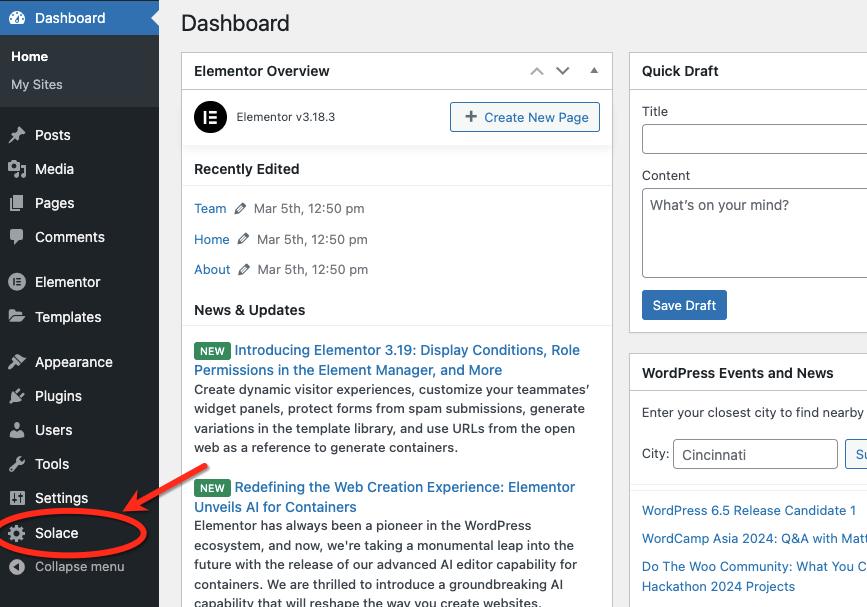
- Navigate to the Solace Menu to access the Solace Dashboard.
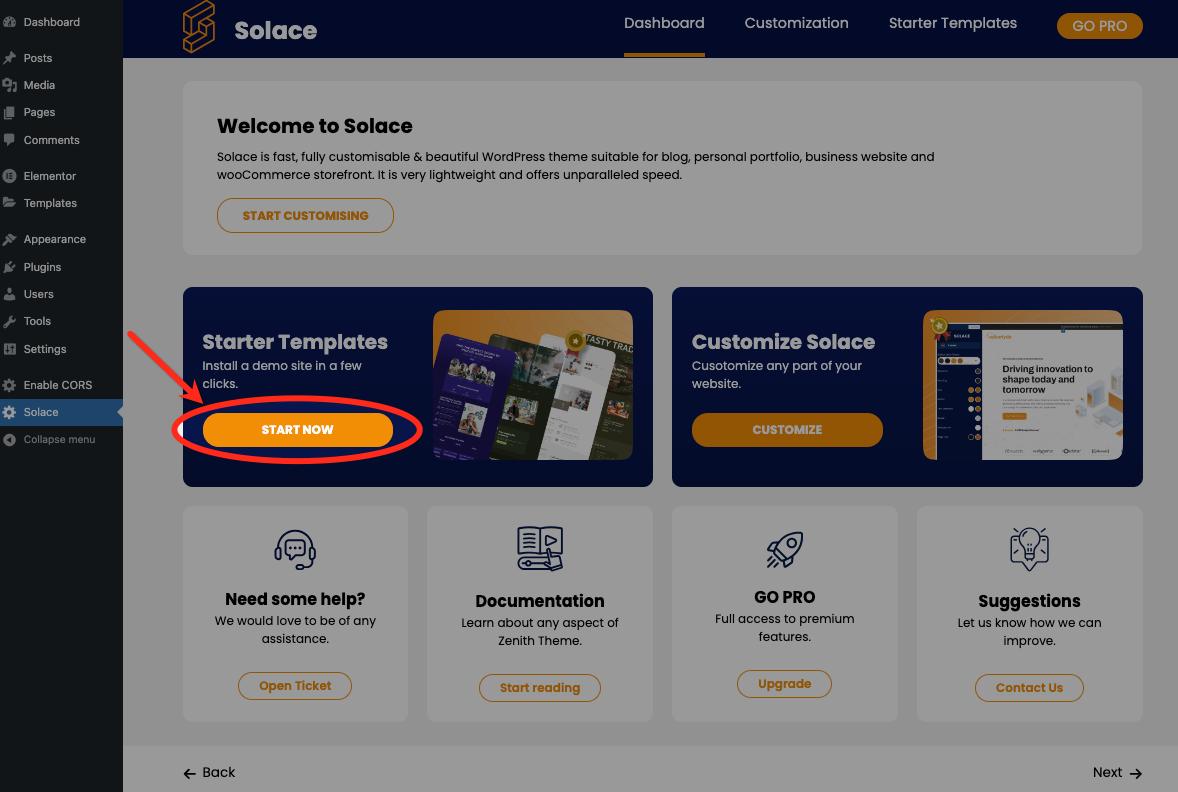
- Click the “START NOW” button to initiate the installation of a demo site.
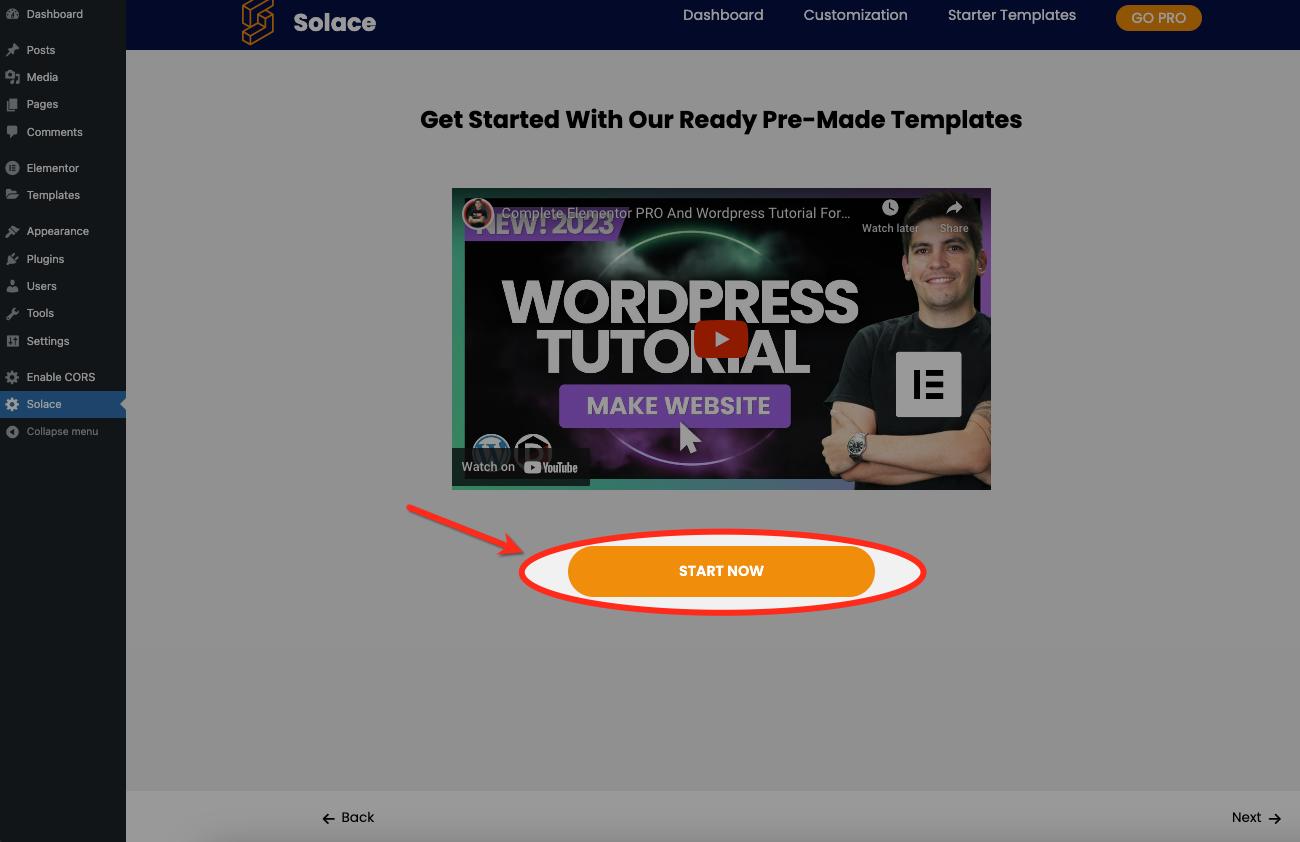
- Click “START NOW” again at the bottom of the video tutorial.
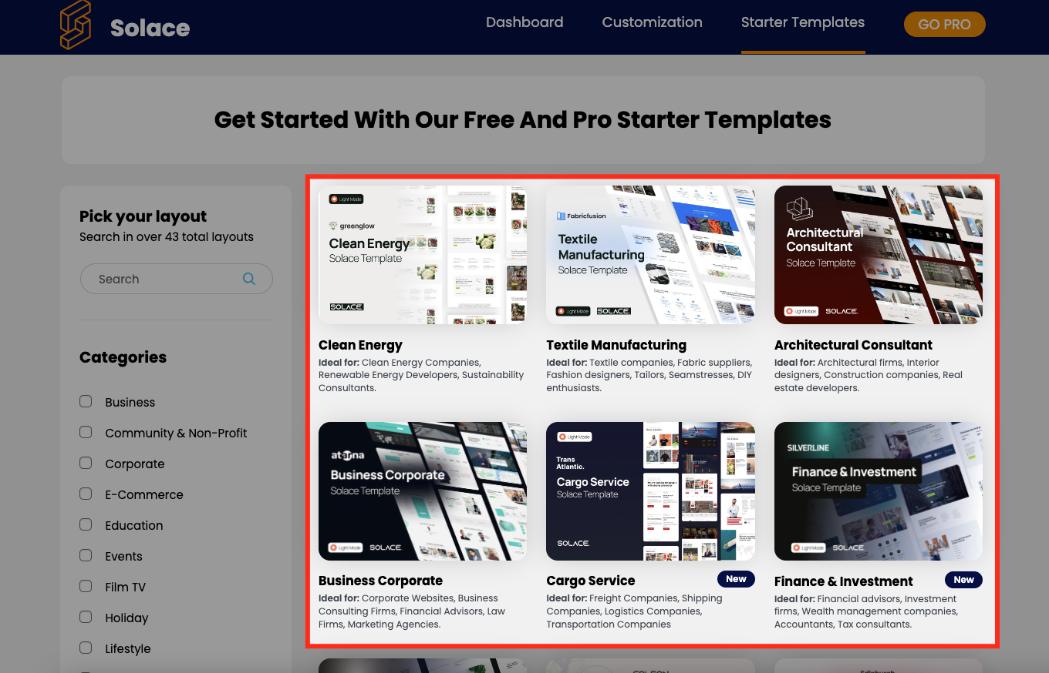
- Templates can be filtered by category or through the search form. Select your preferred template by clicking on the image or text to initiate the demo content import sequence.
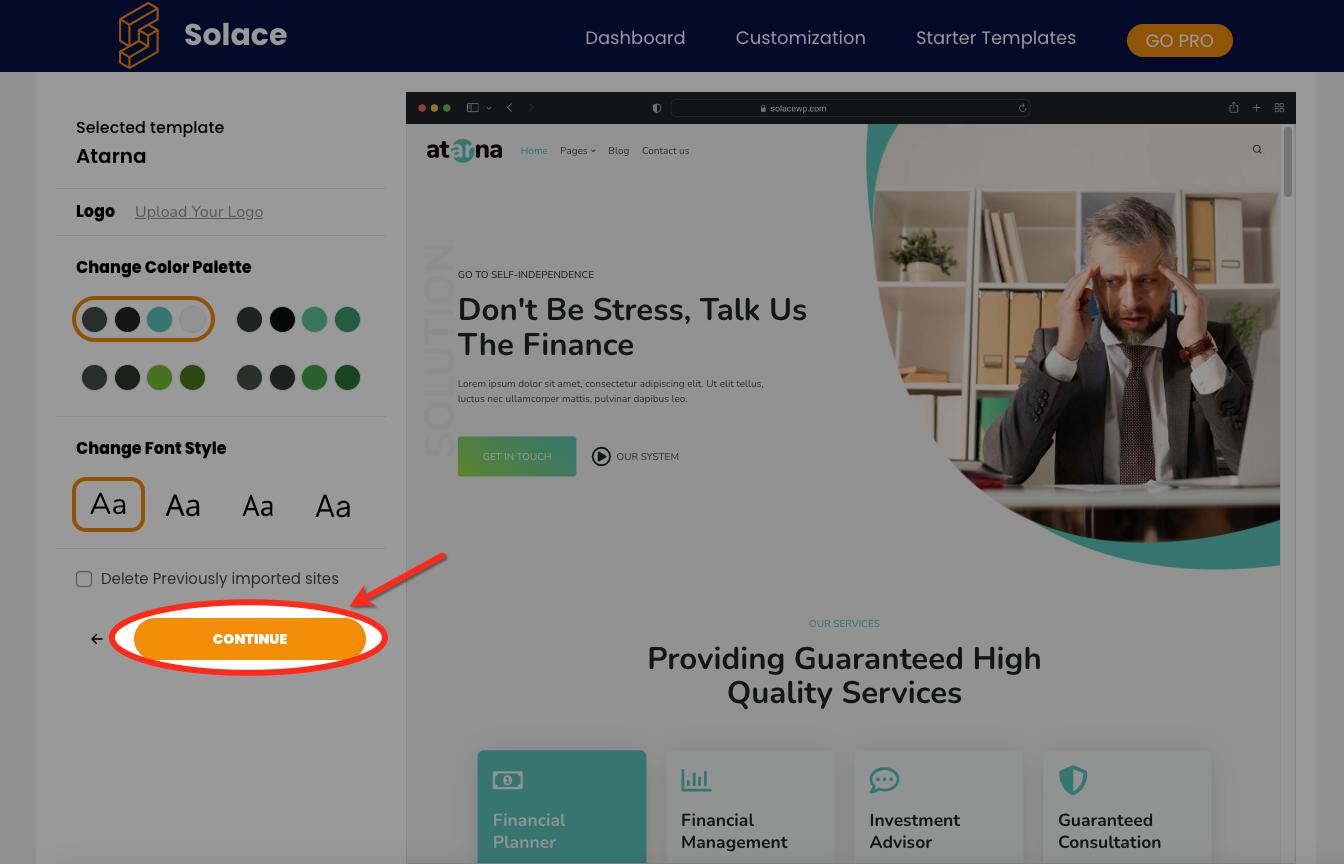
- Customize the logo, color palette, and font style as needed. Check the box labeled “Delete Previously imported sites” if you have already imported the SolaceWP template and wish to delete it; otherwise, you can ignore it, then click the “CONTINUE” button.
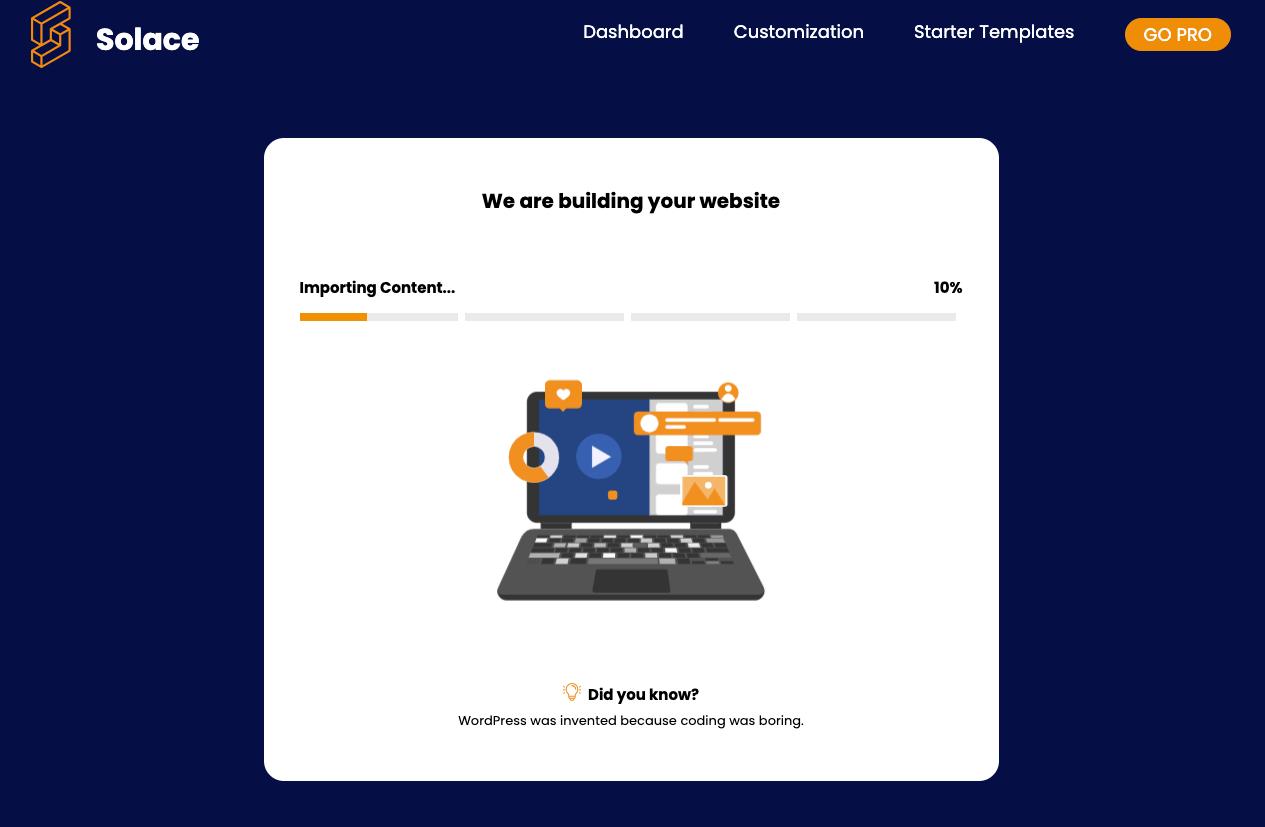
- Wait for a few moments until the demo content import is complete.
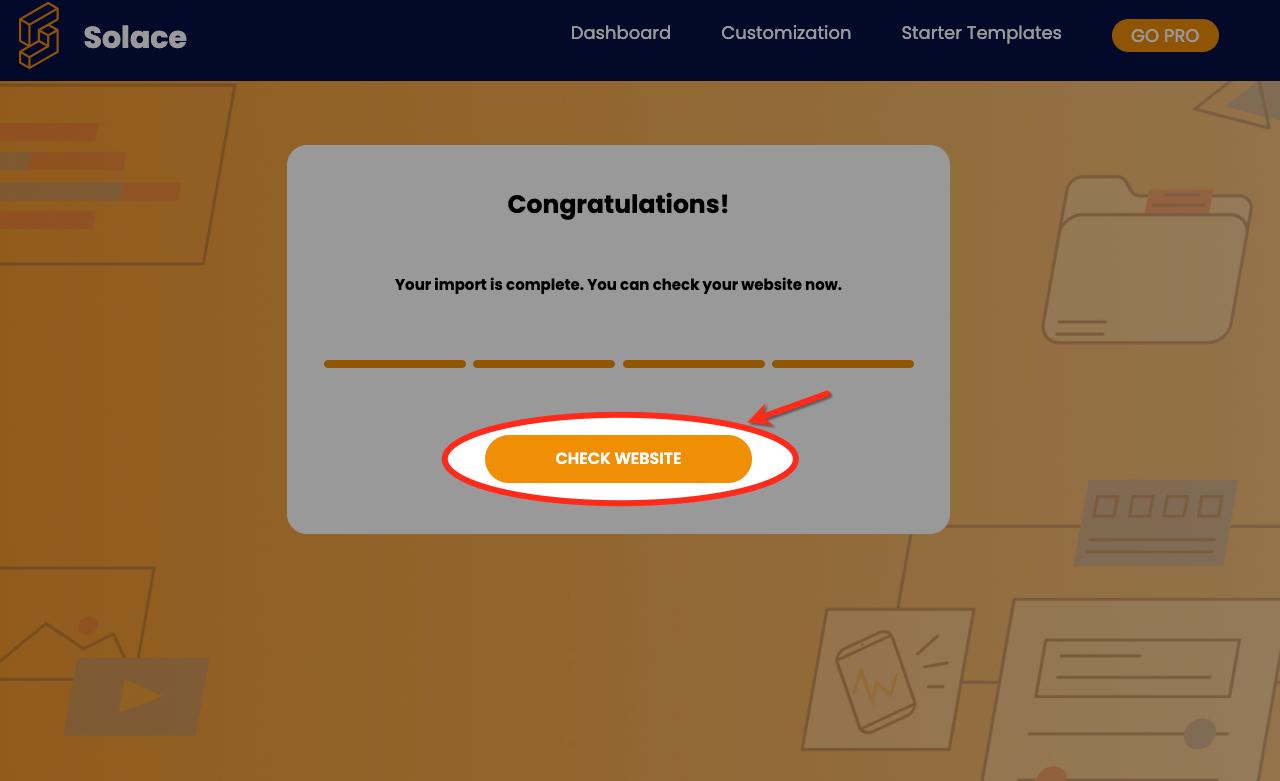
- Click the “CHECK WEBSITE” button to preview the results of the demo content import.
By leveraging the Solace Extra Plugin, you seamlessly jumpstart your website development through efficient demo content import. Following these steps establishes a foundation for a visually appealing and fully functional site.


