Method 1: Install a Theme Through WordPress Admin Theme Search #
To initiate this process, log in to your WordPress admin area.
Installing a new WordPress theme:
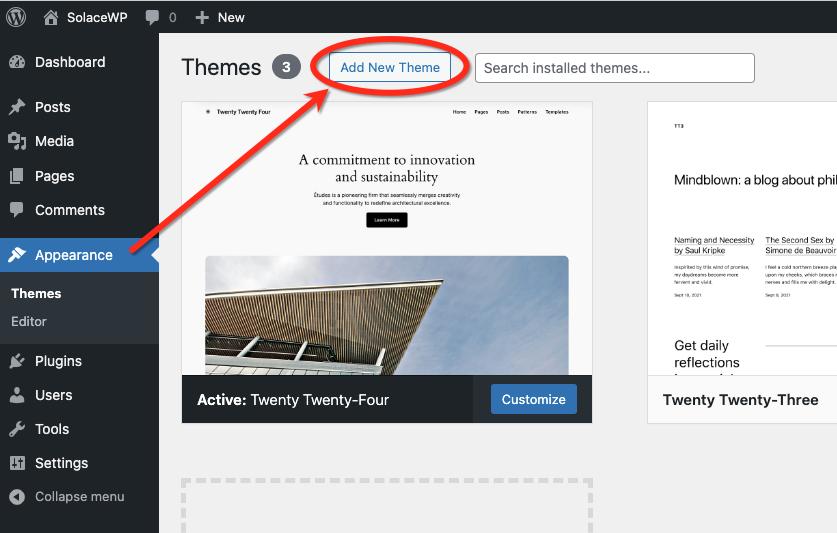
- Visit the Appearance > Themes page and click on the ‘Add New Theme’ button.
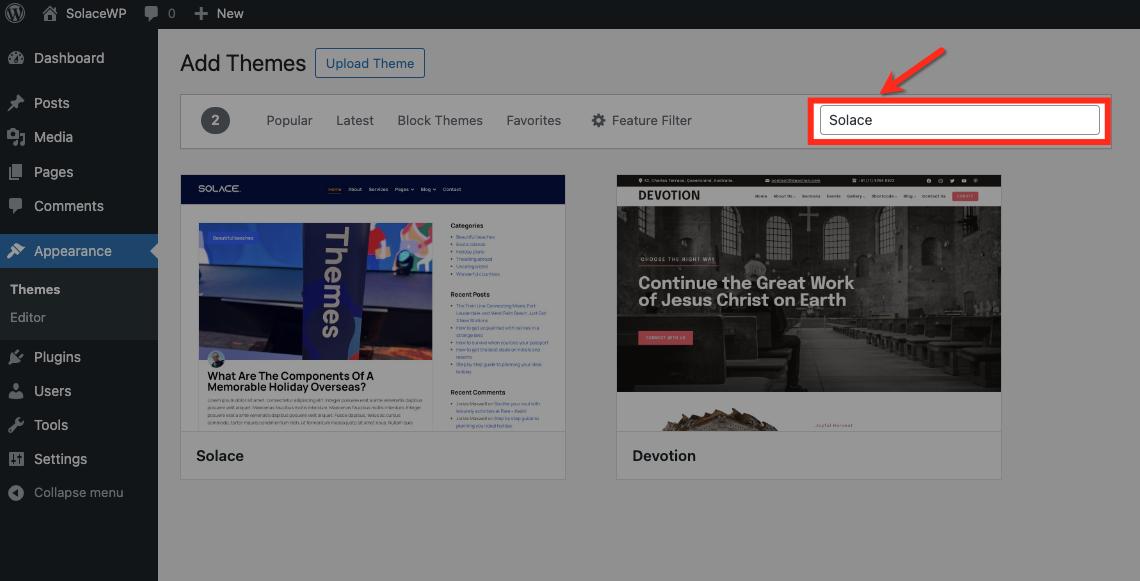
- On the next screen, you can directly search for the SolaceWP theme by entering its name into the ‘Search themes…’ field.
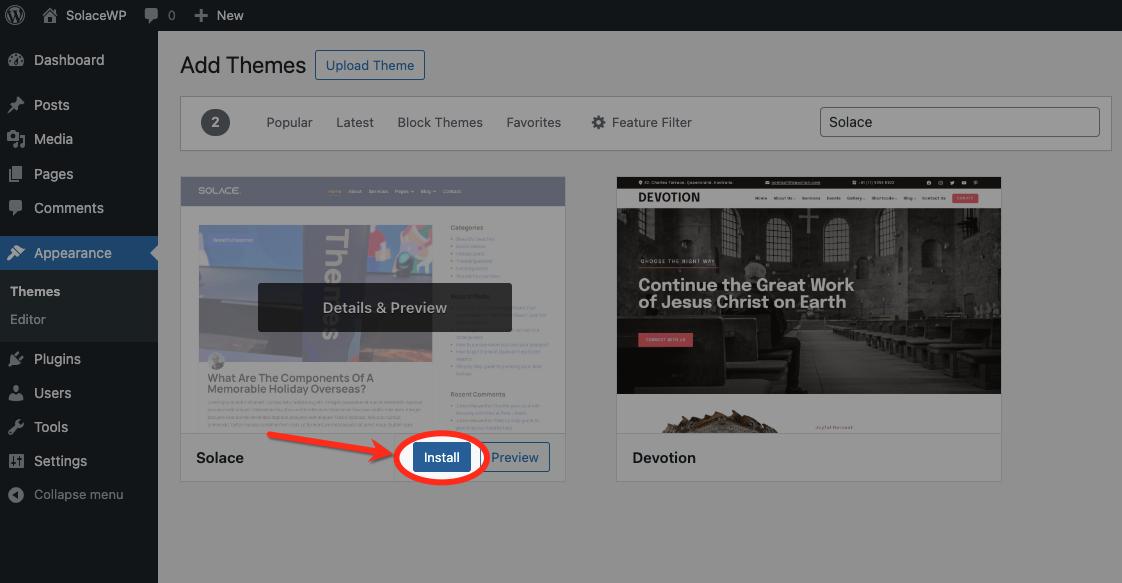
- Click ‘Install’ when SolaceWP appears in the search results. WordPress will promptly install your chosen theme. Upon successful installation, WordPress will display a confirmation message.
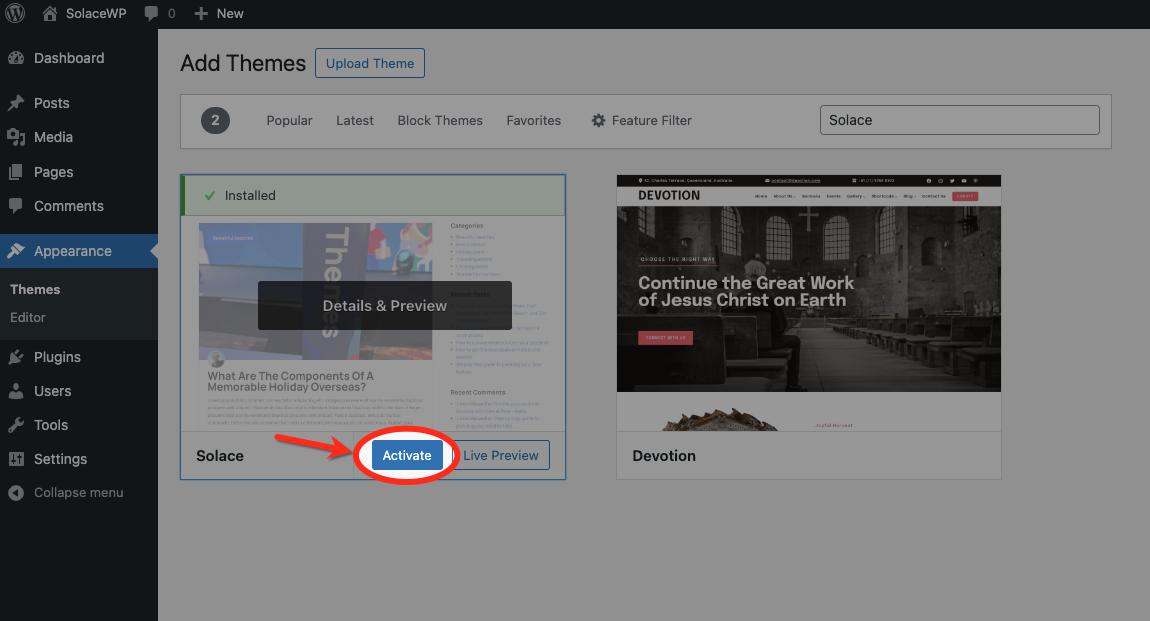
- You will also see the ‘Activate’ and ‘Live Preview’ buttons. To start using this theme on your WordPress website, click on the ‘Activate’ button.
Congratulations! You have now successfully initiated and activated the SolaceWP theme on your WordPress site without any further hassle.
Method 2: Add a Theme via the Upload Option in the WordPress Admin #
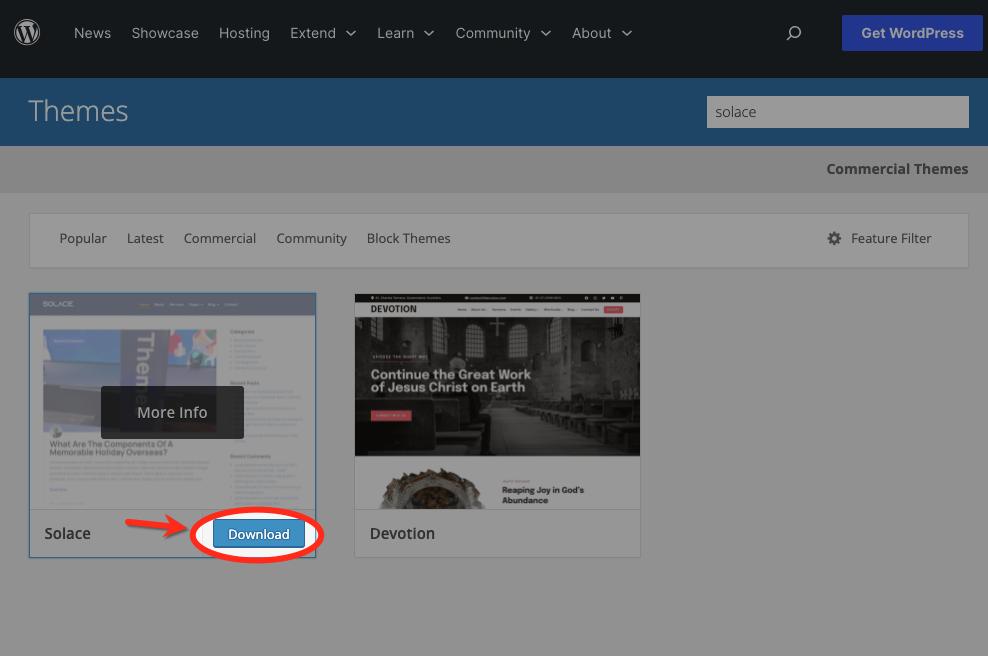
- Download SolaceWP Theme:
- Visit the official SolaceWP website or WordPress.org to download the SolaceWP theme.
- Save the theme files to your computer.
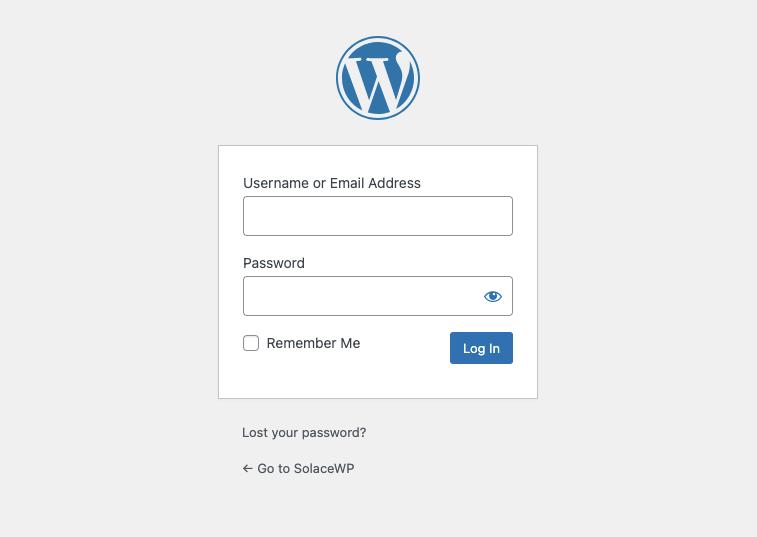
- Log in to Your WordPress Admin:
- Open your web browser and log in to your WordPress admin panel.
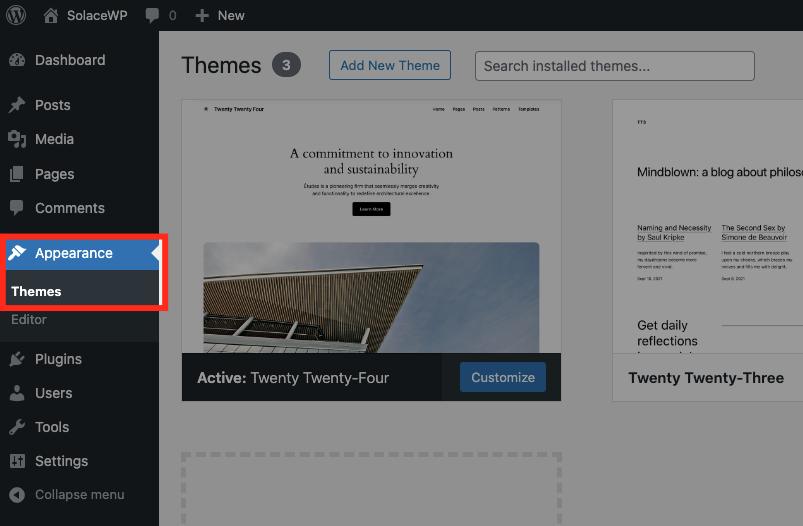
- Navigate to Themes:
- Go to “Appearance” in the WordPress dashboard and select “Themes.”
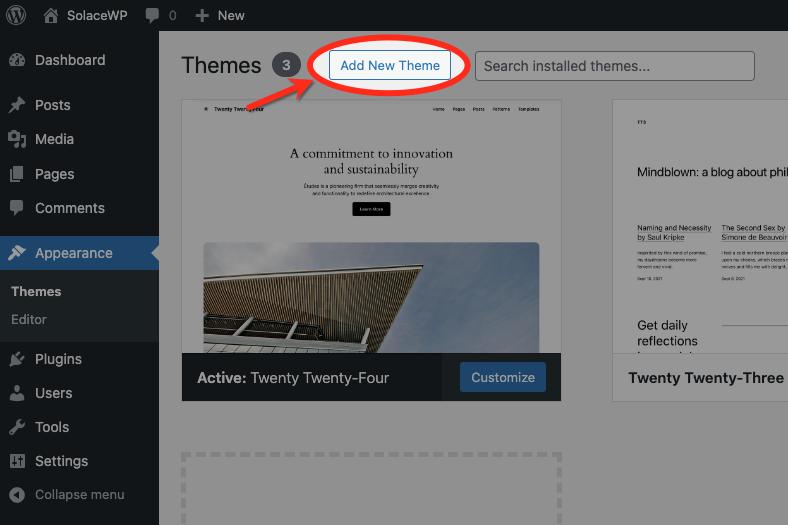
- Click on Add New Theme:
- Click on the “Add New Theme” button at the top of the Themes page.
- Choose the Upload Option:
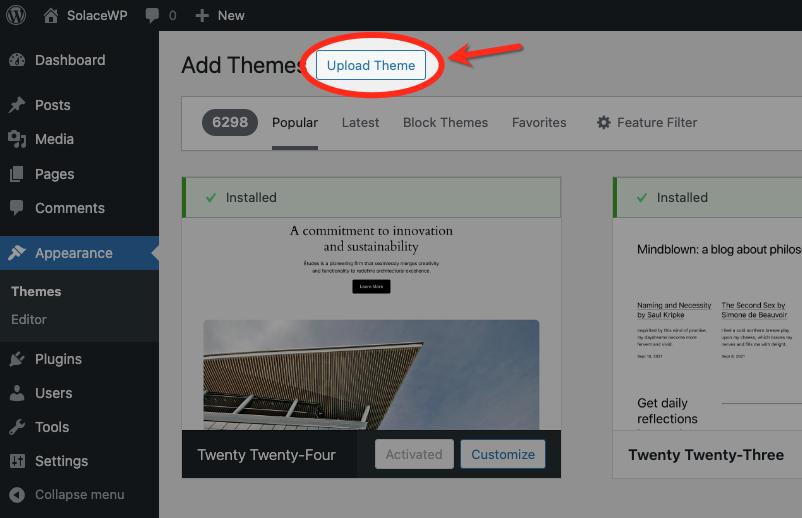
- Click on the “Upload Theme” button.
- Upload SolaceWP Theme:
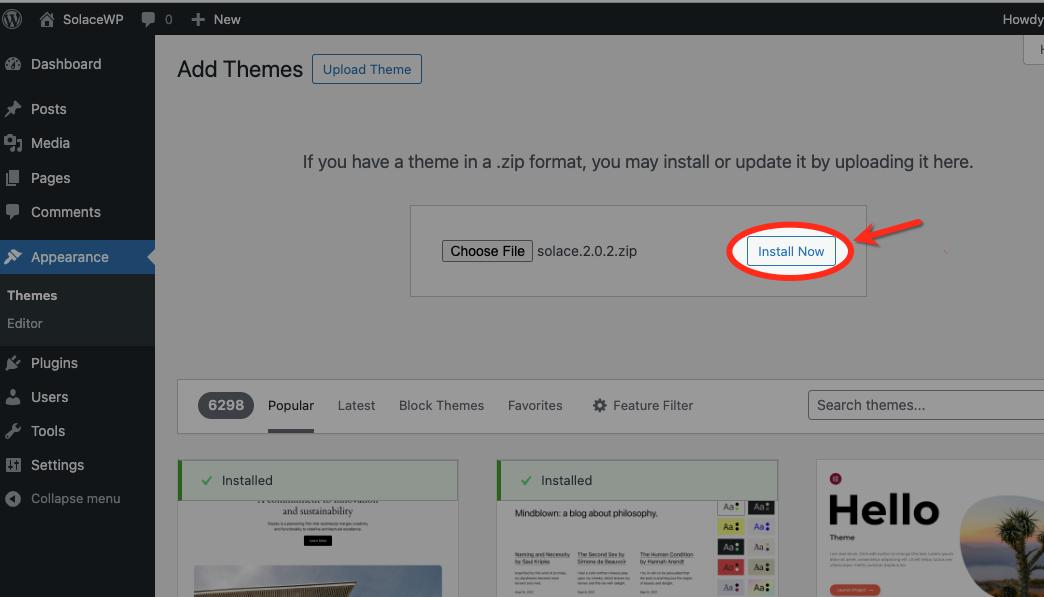
- Click on the “Choose File” button.
- Select the SolaceWP theme ZIP file you downloaded earlier.
- Click “Install Now” to start the upload.
- Activate the Theme:
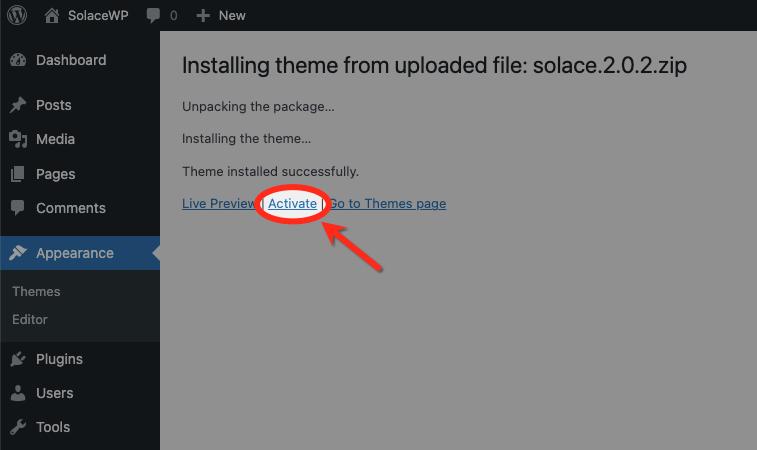
- Once the upload is complete, click the “Activate” button to make SolaceWP your active theme.
- Confirmation:
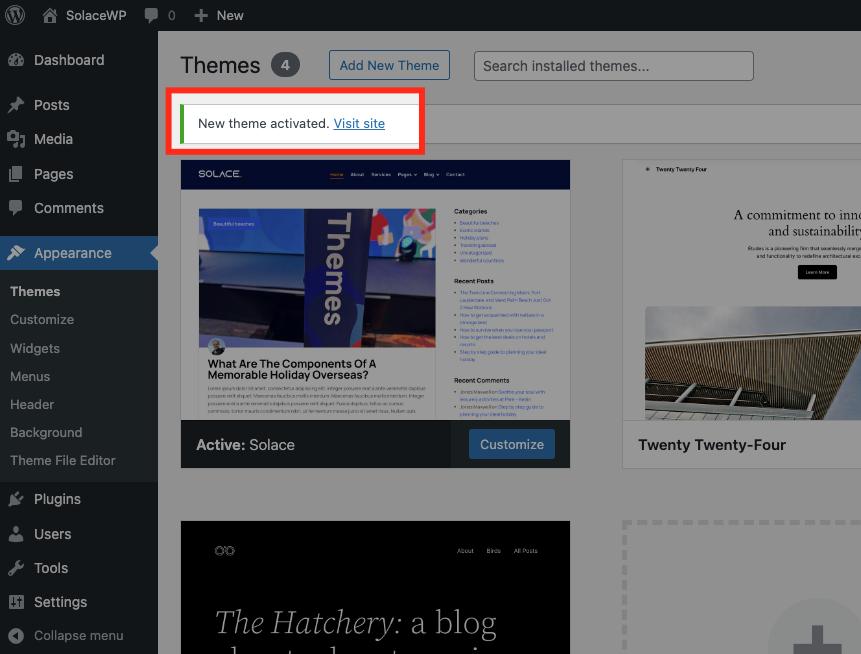
- WordPress will display a success message indicating that the theme has been installed and activated.
- Explore and Customize:
- You can now explore and customize the SolaceWP theme according to your preferences.
- Visit the “Customize” section to modify theme settings, layouts, and other options.
Method 3: Installing a WordPress Theme via FTP #
- Download SolaceWP Theme:
- Visit the official SolaceWP website or WordPress.org to download the SolaceWP theme.
- Save the theme files to your computer.
- Extract Theme Files:
- Unzip the downloaded SolaceWP theme file. This will create a folder containing the theme files.
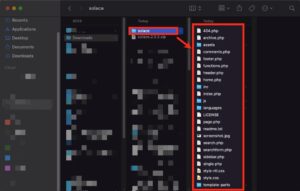
- Connect to Your Server via FTP:
- Use an FTP client (such as FileZilla) to connect to your web hosting server.
- Enter your FTP credentials to establish a connection.
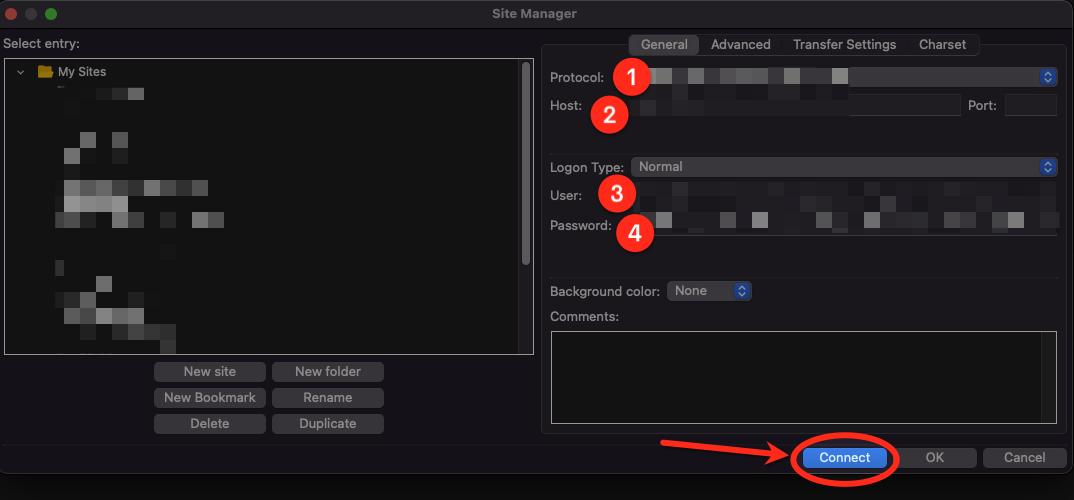
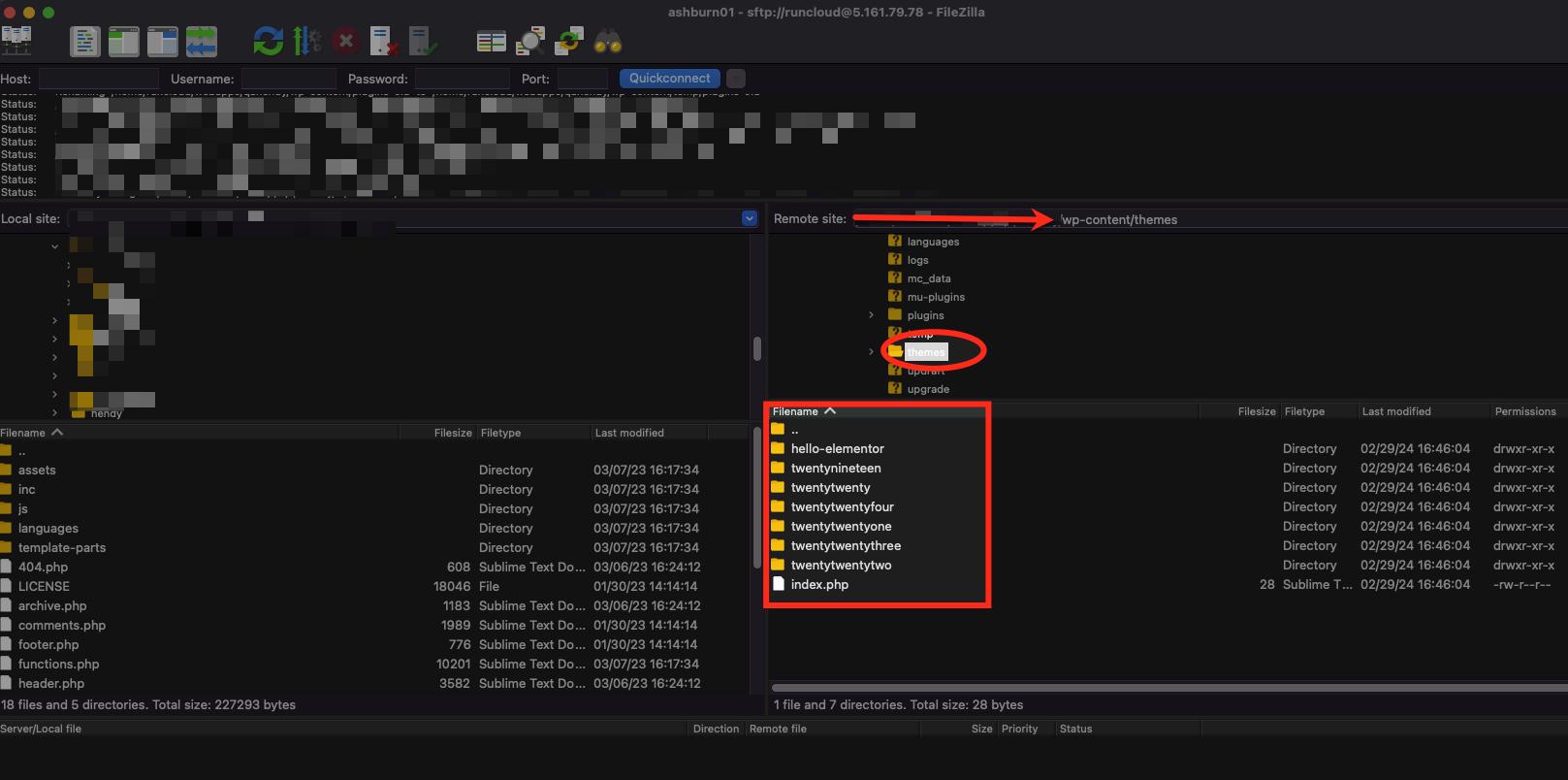
- Navigate to the WordPress Themes Directory:
- Once connected, navigate to the “wp-content/themes” directory on your server.
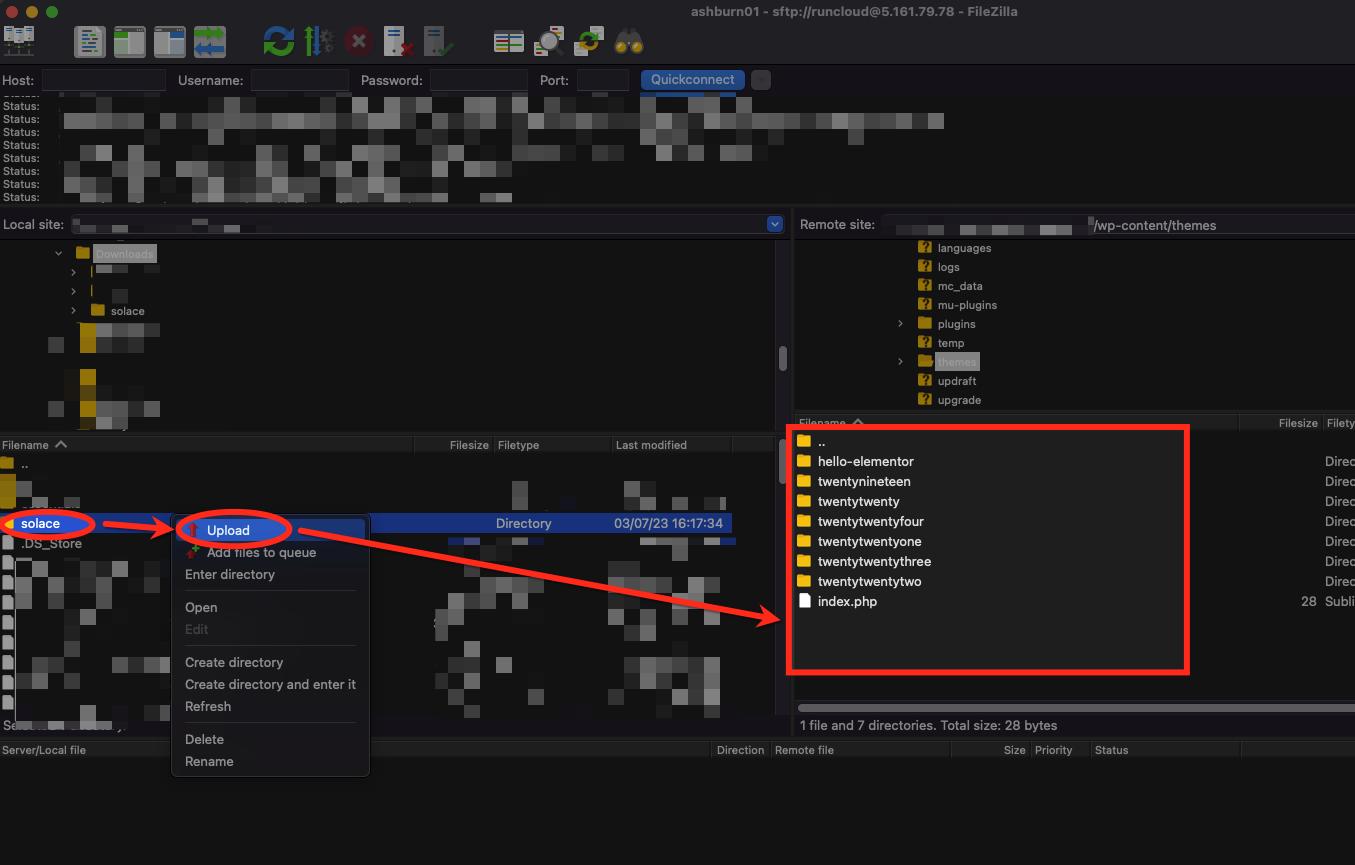
- Upload SolaceWP Theme:
- In your local machine’s SolaceWP theme folder, select all the files and upload them to the “themes” directory on your server.
- Activate the Theme:
- Log in to your WordPress admin panel.
- Go to “Appearance” and select “Themes.”
- You should see SolaceWP listed among the available themes. Click on it.
- Click the “Activate” button to make SolaceWP your active theme.
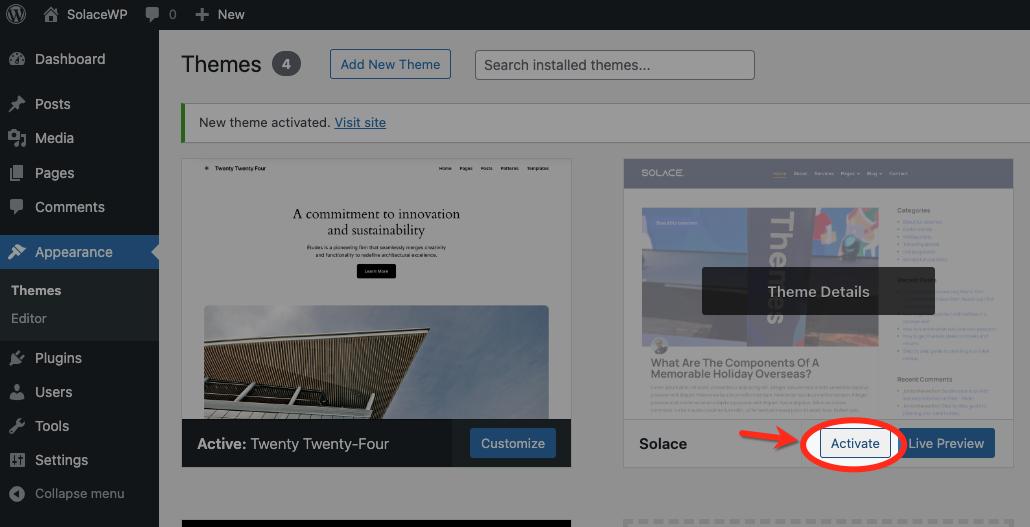
- Confirmation:
- WordPress will display a success message, confirming that the SolaceWP theme has been installed and activated.
- Explore and Customize:
- You can now explore and customize the SolaceWP theme to suit your preferences.
- Visit the “Customize” section to modify theme settings, layouts, and other options.
Required Plugins Installation #
To get the most out of your SolaceWP theme, ensure you have the necessary plugins in place. These carefully chosen plugins seamlessly integrate with the theme, boosting its capabilities and enhancing your overall website-building experience.
The required plugins include:
- Solace Extra
- Elementor
- WooCommerce (optional)
These plugins effortlessly sync up with SolaceWP, offering advanced customization options, a robust page builder, and, if you fancy it, the powerful e-commerce features of WooCommerce.


